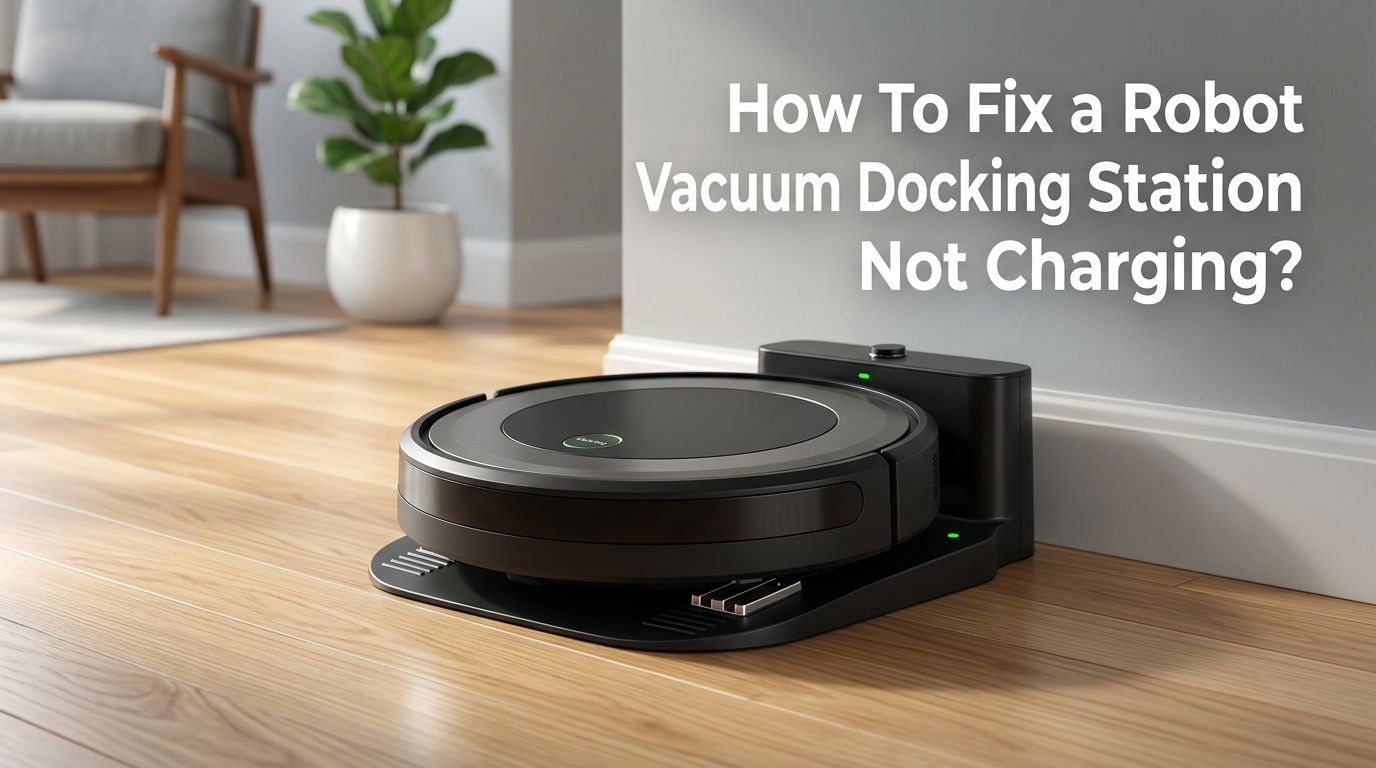
How To Fix a Robot Vacuum Docking Station Not Charging?
You pressed start, your robot vacuum cleaned the whole house, and then it rolled back to the dock. But hours later, you notice the battery is still dead. The docking station did not charge it. This is one of the most common and frustrating problems robot vacuum owners face.
A robot vacuum that refuses to charge on its dock becomes an expensive paperweight. You paid good money for hands free cleaning, and now you are stuck wondering what went wrong.
The good news? Most charging failures are easy to fix at home without special tools or professional help. The issue usually comes down to dirty contacts, a bad power connection, poor dock placement, or a worn out battery.
In a Nutshell
- Dirty charging contacts are the number one cause of docking station charging failures. Dust, hair, and grime build up on the metal pads of both the robot and the dock over time. A simple wipe with a damp melamine foam or soft cloth can restore the connection and fix the problem in minutes.
- Check your power source before anything else. A loose plug, a faulty outlet, or a damaged power cable can stop the dock from receiving electricity. Test the outlet with another device and inspect the cable for visible wear or damage.
- Improper dock placement causes many charging issues. The dock needs to sit on a flat, hard surface against a wall with at least 1.5 feet of clear space on each side and 4 feet of open space in front. Uneven surfaces, thick carpets, or cramped corners prevent proper alignment.
- Software glitches and outdated firmware can block charging. A simple reboot or factory reset clears temporary bugs. Updating your vacuum’s firmware through the companion app can also resolve known charging issues that the manufacturer has already patched.
- A degraded battery may be the real culprit. Robot vacuum batteries typically last 2 to 4 years with regular use. If your vacuum charges but dies quickly, runs for only a few minutes, or shows a full charge that drops fast, the battery likely needs replacement.
- When all else fails, contact customer support. Internal hardware damage, a faulty charging circuit, or a defective dock may require professional repair or warranty replacement. Do not attempt to open electrical components if you are unsure about the process.
Check the Power Source and Outlet First
The simplest explanation is often the right one. Your docking station may not be receiving power at all. Unplug the dock and plug another device into the same outlet to confirm the outlet works. Look at the dock’s power indicator light. If it is off, the outlet or cable is the problem.
Try a different wall outlet in another room. Surge protectors and power strips can sometimes fail without obvious signs. A direct wall connection is always the most reliable option for your charging dock.
Inspect the power cable for cuts, kinks, or frayed sections. Pets sometimes chew cables, and furniture legs can crush them over time. A damaged cable will need a replacement from the manufacturer.
Pros: This check takes less than two minutes and costs nothing. Cons: If the outlet and cable are fine, the issue lies elsewhere.
Clean the Charging Contacts on the Robot
The metal charging contacts on the bottom or back of your robot vacuum collect dust, pet hair, and grime from every cleaning session. This buildup creates a barrier between the robot and the dock. Even a thin layer of dirt can prevent a proper electrical connection.
Turn off your robot vacuum and flip it over. Locate the two or three metal strips or pins. Wipe them gently with a clean, lightly dampened melamine foam (like a Magic Eraser) or a soft cloth. For stubborn oxidation or dark residue, use a cotton swab dipped in rubbing alcohol.
Manufacturers like iRobot recommend cleaning these contacts at least once a month. Make it part of your regular maintenance routine to avoid future charging failures.
Pros: This fix works in the majority of cases and requires no special tools. Cons: If the contacts are physically damaged or corroded beyond cleaning, they may need professional repair.
Clean the Charging Contacts on the Dock
People often forget that the dock has charging contacts too. These metal pins or spring loaded plates on the dock surface collect the same dust and debris. A dirty dock contact will block charging even if the robot’s contacts are spotless.
Unplug the dock before cleaning. Use the same damp melamine foam or soft cloth to wipe the metal pins. Press the spring loaded contacts a few times to make sure they move freely and are not stuck in place. Dirt can sometimes jam these small springs.
If you see green or white corrosion on the dock contacts, clean it carefully with rubbing alcohol and a cotton swab. Dry the contacts completely before plugging the dock back in.
Pros: Quick and effective for a common overlooked issue. Cons: Corroded or bent dock contacts may require a dock replacement.
Reposition the Docking Station Properly
Your dock’s location matters more than you might think. A dock placed on an uneven surface, thick carpet, or in a tight corner can prevent your robot from aligning correctly with the charging contacts. The robot needs to dock at a precise angle to make electrical contact.
Place the dock on a flat, hard floor surface directly against a wall. Leave at least 1.5 feet of clear space on both sides of the dock and about 4 feet of open space in front. This gives the robot enough room to approach and dock smoothly.
Keep the dock away from floor to ceiling windows and mirrors. These reflective surfaces can confuse the infrared sensors that guide the robot back to the dock. Also avoid placing the dock near stairs or on raised platforms.
Pros: Proper placement prevents both docking and charging issues long term. Cons: Finding the ideal spot may require some trial and error in smaller homes.
Manually Dock the Robot Vacuum
Sometimes the robot fails to align itself correctly during automatic docking. A slight misalignment of even a few millimeters can prevent the contacts from touching. You can fix this by placing the robot on the dock yourself.
Turn off the robot vacuum. Pick it up and carefully place it on the dock. Make sure the wheels are tucked in, the robot sits flat, and the charging contacts on the robot line up directly with the dock’s contacts. Do not push the robot too hard into the dock. Leave about a 1 cm gap between the robot’s bumper and the dock wall.
Watch for the charging indicator light to turn on. If the robot charges when you place it manually but fails during automatic docking, the issue is with the robot’s navigation sensors, not the charging system.
Pros: This method helps you isolate whether the problem is charging or navigation related. Cons: It does not solve the root cause if automatic docking is the issue.
Restart or Reset the Robot Vacuum
Software glitches can cause a robot vacuum to ignore the charging signal from the dock. A simple restart clears temporary bugs from the system’s memory and often resolves the issue immediately.
Hold the power button on your robot for 10 to 20 seconds until it shuts down completely. Wait 30 seconds, then turn it back on. Place it on the dock and check if charging begins.
If a restart does not help, try a factory reset. The method varies by brand. Many models require you to hold the home and spot clean buttons together for 10 seconds. Check your user manual for exact instructions. Keep in mind that a factory reset erases saved maps and cleaning schedules.
Pros: Rebooting fixes many software related charging bugs instantly. Cons: A factory reset removes all your custom settings and saved room maps.
Update the Firmware Through the App
Manufacturers release firmware updates that fix known bugs, including charging issues. An outdated firmware version might contain a glitch that prevents the robot from communicating with the dock correctly.
Open your robot vacuum’s companion app on your phone. Go to device settings and look for a firmware or software update option. If an update is available, make sure the robot has at least 20% battery before starting. Keep the robot near the dock and your phone during the update process.
Check the app once a month for new updates. Some models update automatically over Wi Fi, but others require a manual trigger from the app. Read the release notes to see if the update addresses any charging related fixes.
Pros: Free fix that can resolve bugs without any physical troubleshooting. Cons: A failed firmware update can sometimes cause new issues. Always ensure a stable Wi Fi connection during the process.
Inspect the Battery for Wear or Damage
Robot vacuum batteries use lithium ion or nickel metal hydride chemistry. Both types degrade over time. Most robot vacuum batteries last between 2 and 4 years with daily use. After that, they lose their ability to hold a charge.
Signs of a worn battery include dramatically shorter cleaning times, rapid charge drops, the robot dying within minutes of leaving the dock, or the battery indicator showing full and then quickly dropping to empty. Some vacuums will also display a battery error code.
Open the battery compartment (usually on the bottom of the robot) and inspect the battery for swelling, leaking, or visible damage. A swollen battery is a safety hazard and should be removed immediately. Replace it with a compatible battery from the manufacturer or a trusted third party source.
Pros: A new battery often restores full performance for another 2 to 4 years. Cons: Replacement batteries can cost between $25 and $80 depending on the brand and model.
Check for Obstructions Around the Dock
Physical objects near the dock can interfere with both docking and charging. Shoes, cables, furniture legs, and stray toys can block the robot’s path or prevent it from sitting properly on the dock.
Clear the area around the dock completely. Make sure no cords run across the floor near the dock entrance. Some robot vacuums have infrared or laser sensors on the front that need a clear line of sight to locate the dock. Objects blocking these sensors cause repeated docking failures.
Also check the underside of the robot for tangled hair, strings, or debris wrapped around the wheels. A stuck wheel can tilt the robot slightly and prevent the charging contacts from aligning with the dock.
Pros: Simple visual inspection that takes just a minute. Cons: Obstructions are usually obvious, so this fix works only in specific cases.
Test with a Different Charging Dock
If you have tried everything and the robot still will not charge, the dock itself may be defective. Internal components like the power board or charging circuit can fail over time, especially after power surges.
Borrow a compatible dock from a friend or contact the manufacturer about a replacement. Place your robot on the different dock. If it charges normally, you have confirmed the original dock is faulty.
Some manufacturers offer replacement docks under warranty. Check your warranty status before purchasing a new dock. Many brands provide a 1 to 2 year warranty that covers defective accessories.
Pros: This definitively identifies a faulty dock. Cons: Replacement docks can be expensive, sometimes costing $50 to $150 depending on the model.
Look at the Charging Indicator Lights
Most robot vacuums and docks use LED indicator lights to communicate their status. Understanding what these lights mean can point you directly to the problem.
A solid green light typically means the robot is fully charged. A pulsing or blinking light usually indicates active charging. A red light or no light at all often signals a charging error or a dock that has no power. Some models use orange or amber lights for specific error codes.
Check your user manual or the manufacturer’s website for the exact meaning of your model’s light patterns. Many brands list their indicator codes online. A flashing red light, for example, might mean a battery temperature error rather than a connection failure.
Pros: LED codes help you diagnose the specific problem without guesswork. Cons: Light patterns vary across brands, so you need to look up your specific model.
Avoid Common Mistakes That Cause Charging Problems
Several everyday habits can contribute to recurring charging failures. Leaving the dock unplugged when the robot is not in use causes the battery to drain completely, which can damage lithium ion cells over time.
Always keep the dock plugged in and powered on. This allows the robot to top off its charge whenever it returns home. Do not store your robot vacuum with a fully depleted battery for weeks or months. If you plan to store it, charge it to about 50% first and check it every few weeks.
Avoid using off brand chargers or power cables. These may deliver incorrect voltage or amperage that can damage the dock’s circuitry or the robot’s battery. Stick with the manufacturer’s original power adapter whenever possible.
Pros: Preventive habits save you from future repairs and extend battery life. Cons: Requires consistent attention to charging habits.
When to Contact Customer Support
You have cleaned the contacts, checked the power, repositioned the dock, updated the firmware, and tested the battery. If the robot still will not charge, the problem is likely internal hardware damage that requires professional repair.
Contact the manufacturer’s customer support team through their website, app, or phone line. Have your model number, serial number, and purchase date ready before calling. Many brands offer remote diagnostics through their apps that can identify issues before you send the unit in.
If your vacuum is still under warranty, the manufacturer may repair or replace the unit at no cost. Extended warranty plans and credit card purchase protections can also cover repairs beyond the standard warranty period.
Pros: Professional support resolves issues that home fixes cannot address. Cons: Out of warranty repairs can be costly, and shipping the unit may take time.
Frequently Asked Questions
Why does my robot vacuum sit on the dock but not charge?
The most common cause is dirty charging contacts. Dust and debris on the metal pads of the robot or dock block the electrical connection. Clean both sets of contacts with a damp melamine foam or a cloth dampened with rubbing alcohol. Also verify that the dock is receiving power by checking its indicator light.
How often should I clean the charging contacts?
Clean the charging contacts on both the robot and the dock at least once a month. If you have pets or your home generates a lot of dust, consider cleaning them every two weeks. Regular cleaning prevents buildup that leads to charging failures.
How do I know if my robot vacuum battery needs replacement?
Watch for signs like dramatically shorter run times, fast battery drain, the robot dying shortly after leaving the dock, or error codes related to the battery. Most robot vacuum batteries last 2 to 4 years. If your vacuum is older and shows these symptoms, a new battery will likely fix the issue.
Can a power surge damage my robot vacuum’s docking station?
Yes. A power surge can damage the internal circuitry of the dock, making it unable to deliver power to the robot. Using a surge protector for your dock’s power cable adds a layer of protection. If you suspect surge damage, test with a different dock to confirm.
Should I leave my robot vacuum on the dock all the time?
Yes. Manufacturers recommend keeping the dock plugged in and the robot on the dock when not in use. Modern lithium ion batteries have built in circuits that prevent overcharging. Keeping the robot on the dock ensures it is always ready for the next cleaning session and avoids deep battery discharge.
Will a factory reset fix my robot vacuum’s charging problem?
A factory reset can fix charging problems caused by software glitches. However, it erases all saved maps, schedules, and custom settings. Try a simple reboot first by holding the power button for 10 to 20 seconds. Only perform a factory reset if a reboot does not resolve the issue.

Hi, I’m Grace Bell, the founder of CleanFloorVault.com, where I personally test and review vacuum cleaners to help you find the perfect tool for a spotless home.